

In the digital world, every connected device needs a unique identifier—its license plate—known as an IP address. These addresses are divided into two main categories: Public IPs, which are used to connect to the Internet, and Private IPs, which are used within a local network, such as your home or office. The address 192.168.0.1 (or its sibling, 192.168.1.1) falls into the latter category and is arguably the most crucial IP address in your entire network.
Reserved in the 1990s as part of the Class C private address range (192.168.0.0 to 192.168.255.255), this specific IP is the Default Gateway for most modern networking hardware. It serves as the front door to your router's administrative control panel. Accessing this simple address is what grants you the power to troubleshoot, secure, and customize your entire network ecosystem. From creating a secure guest network to diagnosing frustrating connection issues, everything starts by knowing how to use and protect this address.
Understanding the role of the Default Gateway is no longer just for network technicians; it is an essential piece of digital literacy in an era dominated by smart homes and complex network demands. This guide details why 192.168.0.1 is so important, what capabilities it unlocks, and the steps you must take to protect it from unauthorized access.
1. Decoding the Default Gateway: 192.168.0.1 Explained
The IP range 192.168.X.X is part of the Class C network defined in RFC 1918, which is exclusively reserved for small private networks. This standardization ensures that local network traffic never clashes with public internet traffic. Within this range, the address with the final octet of "1" is almost universally designated as the router's IP address (the Default Gateway).
- The Router's Role. Your router acts as the "Gateway" between your private network (all your devices) and the public Internet. When any device on your local network (e.g., 192.168.0.50) needs to send data out to the Internet, it must first send that traffic to the router—the Default Gateway (192.168.0.1).
- 192.168.0.1 vs. 192.168.1.1. While 192.168.0.1 is common for brands like D-Link and Netgear, its counterpart, 192.168.1.1, is the preferred default for brands like Cisco, Linksys, and some major ISPs. Regardless of which version you have, their function is identical: to serve as the router's configuration access point.
- Your Device's IP. Every device connected to your network (laptop, phone, smart fridge) will receive a unique IP address within the same range (e.g., 192.168.0.2, 192.168.0.3, up to 192.168.0.254).
2. Unlocking the Router’s Potential: What Access Achieves
When you successfully type the router’s IP address (192.168.0.1 or 192.168.1.1) into a web browser, you gain access to the router’s configuration interface. This panel is the central nervous system of your network and allows you to make deep, critical changes that govern security, speed, and connectivity.
2.1 Critical Security and Access Management
Accessing the gateway is essential for ensuring your network is secure and properly segregated:
- Change Default Credentials. The most crucial step upon logging in is to change the default username and password for the administrator panel. Failing to do this is a massive security breach, as default codes are easily found online.
- Create and Manage Guest Networks. You can configure and activate a separate Guest WiFi network. This isolates visitors from your private devices, preventing malware spread and unauthorized access to your files and smart devices.
- View Connected Clients. You can see a complete list of every device currently connected to your network (both wired and wireless), allowing you to find out who is connected to the network and identify any unknown or unauthorized users.
2.2 Optimization and Performance Tuning
For advanced users, the configuration interface allows fine-tuning that can drastically improve the performance of our WiFi:
- Quality of Service (QoS). You can prioritize certain types of traffic (e.g., video calls or gaming) over less time-sensitive tasks (like cloud backups) to prevent lag and ensure a smooth experience for critical applications.
- Port Forwarding. Essential for specific online games, surveillance systems, or hosting servers, this allows you to direct external internet traffic specifically to a designated device on your internal network.
- Channel Optimization. You can manually change the WiFi channel (e.g., from a congested channel 6 to an open channel 1 or 11) to reduce interference from neighboring networks, significantly improving speed and stability.
2.3 Firmware Updates and Maintenance
The router's software is its firmware. Keeping this up to date is crucial for both functionality and security:
- Install Updates. While many operators perform this task automatically, checking the interface ensures the firmware version is up to date. New versions fix usability problems, add new features (like support for Wi-Fi 6 or WPA3), and—most importantly—patch security flaws.
- Security Fixes. New versions often include security updates that fix bugs or errors and prevent intruders from exploiting vulnerabilities to gain access to the router’s administrative controls. It is crucial to keep electronic devices up to date.
3. Protecting Your Gateway: Preventing Unauthorized Access
Access to the router's configuration panel is only possible if the device attempting to connect is already on the local network (either via WiFi or an RJ-45 Ethernet cable). This means intruders pose a risk if they can physically connect to a network socket, gain unauthorized access to the WiFi, or simply steal a device previously connected to the network.
3.1 The Fundamental Security Checklist
The best way to prevent unauthorized access is to eliminate generic access points:
- Change the Administration Passwords IMMEDIATELY. This is non-negotiable. Many people continue using the default passwords (like admin/admin) for convenience, unaware that this is a considerable security breach. Default codes are often compiled on several pages specifically targeting common router models.
- Secure Physical Access. Keep the router out of the reach of third parties, especially in businesses or shared housing situations, so they cannot check the sticker for the default username and password or perform a physical reset.
- Disable Remote Management. Ensure that the setting for Remote Management or "Access from WAN" is disabled. This prevents anyone from outside your local network from attempting to log in to the router configuration interface.
- Use a Firewall (Advanced). For computers that rarely need to access the router, you can configure a simple firewall rule to limit or block access to the 192.168.0.1 IP address, reinforcing protection.
4. Troubleshooting Common IP Gateway Bugs and Errors
If you cannot connect to the 192.168.0.1 (or 192.168.1.1) address, there are several diagnostic steps you must take to find the root cause.
4.1 Verifying the Correct Gateway IP
The first step is always to confirm what your router’s actual IP address is, as it may have been changed manually or configured differently by your ISP:
- Windows: Open the Command Prompt and type the command ipconfig. Look for the field labeled "Default Gateway." This displays the exact IP address of your router.
- macOS/Linux: Open the Terminal and type netstat -nr | grep default. The IP address shown is your Default Gateway.
Remember that IP addresses are made up of four numbers separated by dots. It may seem an absurd error, but depending on the font, the zeros could be mistaken for an uppercase O, or the ones for a lowercase L. For this reason, when typing the IP, pay special attention and ensure that only numbers and dots are used, and not try to access 192.168.0.l, which would be incorrect.

4.2 Diagnosing APIPA/169.254.X.X Errors
If your device's IP address starts with 169.254.X.X instead of 192.168.X.X, it is a definitive sign that something is wrong. This IP range is automatically assigned via the APIPA protocol (Automatic Private Internet Protocol Addressing) when the device cannot successfully obtain a valid address from the router's DHCP server.
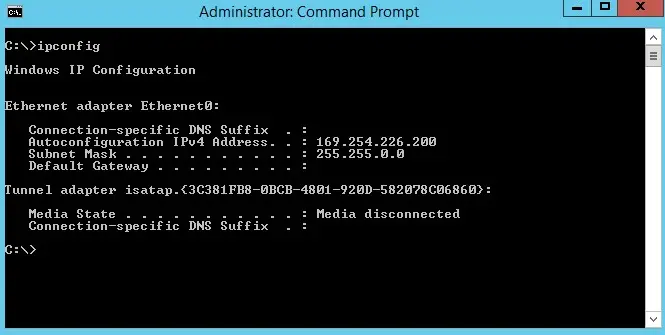
The standard process is IP address assignment by DHCP (Dynamic Host Configuration Protocol), where the router automatically assigns a unique, free IP from the correct range (192.168.0.X). If the DHCP server is off, malfunctioning, or the connection is blocked, your device resorts to the APIPA range, which means it is connected to the network, but has no gateway to the Internet.
To resolve this issue, follow these steps:
- Restart the Router and Device. Always perform a full power-cycle (unplug both for 30 seconds). This often resolves temporary DHCP server malfunctions.
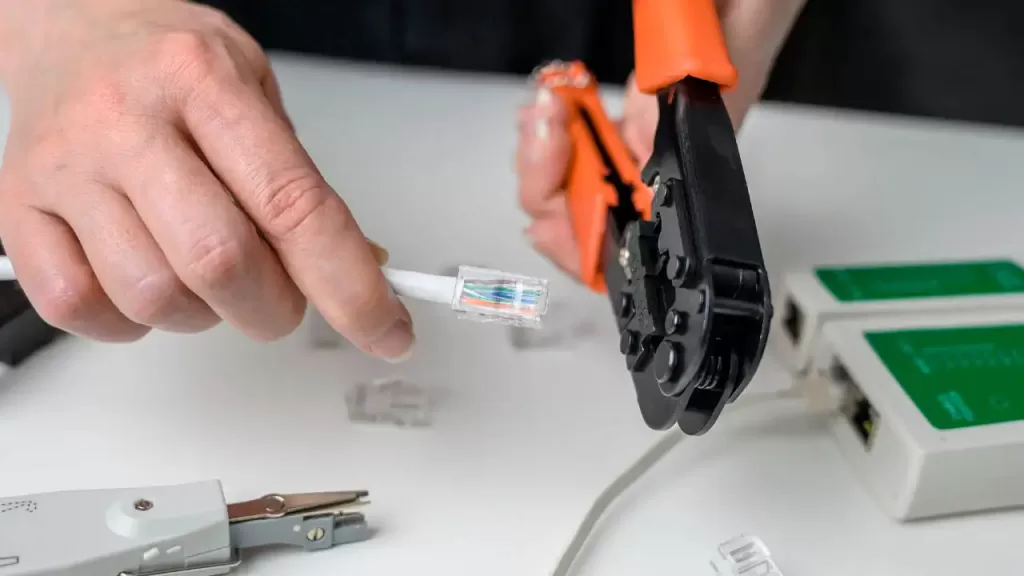
- Check Physical Connection (Cable). If using a cable, ensure the router is on, the cable is securely connected at both ends, and the cable itself is undamaged.
- Manually Configure IP (Last Resort). If the situation persists, the DHCP server might be permanently disabled in the router. You will then have to manually configure a static IP address on the computer (e.g., 192.168.0.100) to connect to the network successfully, allowing you to access the router panel and re-enable DHCP.
Knowing how to access and manage the IP 192.168.0.1 is essential for maximizing your network’s functionality, optimizing speed, and ensuring a high level of security against unauthorized access.
Frequently Asked Questions (Interactive FAQ)
Your device's IP address (e.g., 192.168.0.50) is the unique ID of your laptop or phone within the local network. The Default Gateway IP (e.g., 192.168.0.1) is the address of the router, which serves as the "exit door" for all your local traffic to reach the public internet. All traffic must pass through the Gateway.
Most routers have a feature called Remote Management or "Access from WAN" that allows this. However, it is strongly recommended to keep this feature disabled for security reasons. Allowing remote access significantly increases the risk of unauthorized login attempts from the public internet, even if you have a strong password.
No, it's not wrong at all. Both 192.168.1.1 and 192.168.0.1 are standard default IP addresses for the Default Gateway. They both belong to the same Class C private range. The specific IP used depends solely on the router manufacturer or the ISP that supplied the device.
Post a Comment for "The Default Gateway: Why 192.168.0.1 (or 192.168.1.1) is the Most Important IP Address You Need to Know"