
Effective Wi-Fi management goes far beyond checking signal bars. To truly optimize performance, troubleshoot complex issues, and audit security, you need to conduct an advanced Wi-Fi analysis. This process moves beyond basic scanning to deep packet inspection, radio frequency measurement, and geospatial mapping.
Building upon foundational Wi-Fi analysis knowledge, the following 10 advanced tips utilize highly technical features like monitor mode and specialized metrics to provide a professional-grade understanding of your wireless environment. Implementing these steps is crucial for network engineers, cybersecurity professionals, and power users aiming for maximum stability and speed.
1. Enable Monitor Mode for Comprehensive Data Capture
-
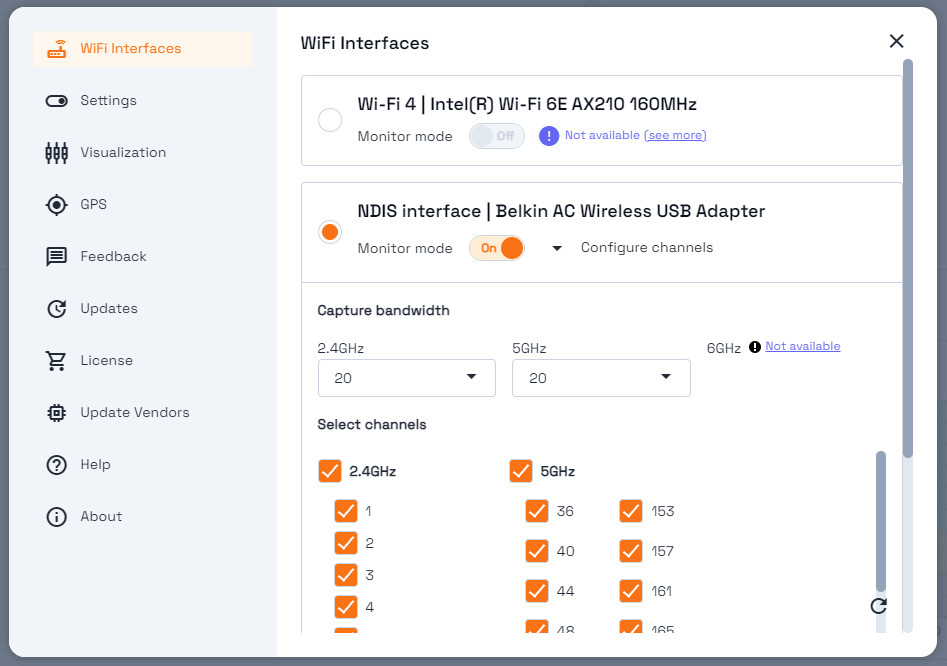
Network Interface Selection: It's possible to use any Wi-Fi card, whether integrated or an external USB one. However, for advanced analysis, you must extend your capture capabilities using a compatible card and a Wi-Fi sniffer tool (like Acrylic Wi-Fi Sniffer) to enable monitor mode, also known as promiscuous mode. This highly recommended functionality allows the capture of all Wi-Fi data being transmitted over the air, not just traffic intended for your device.
2. Deep Dive into Packet Inspection and Traffic Logs
-
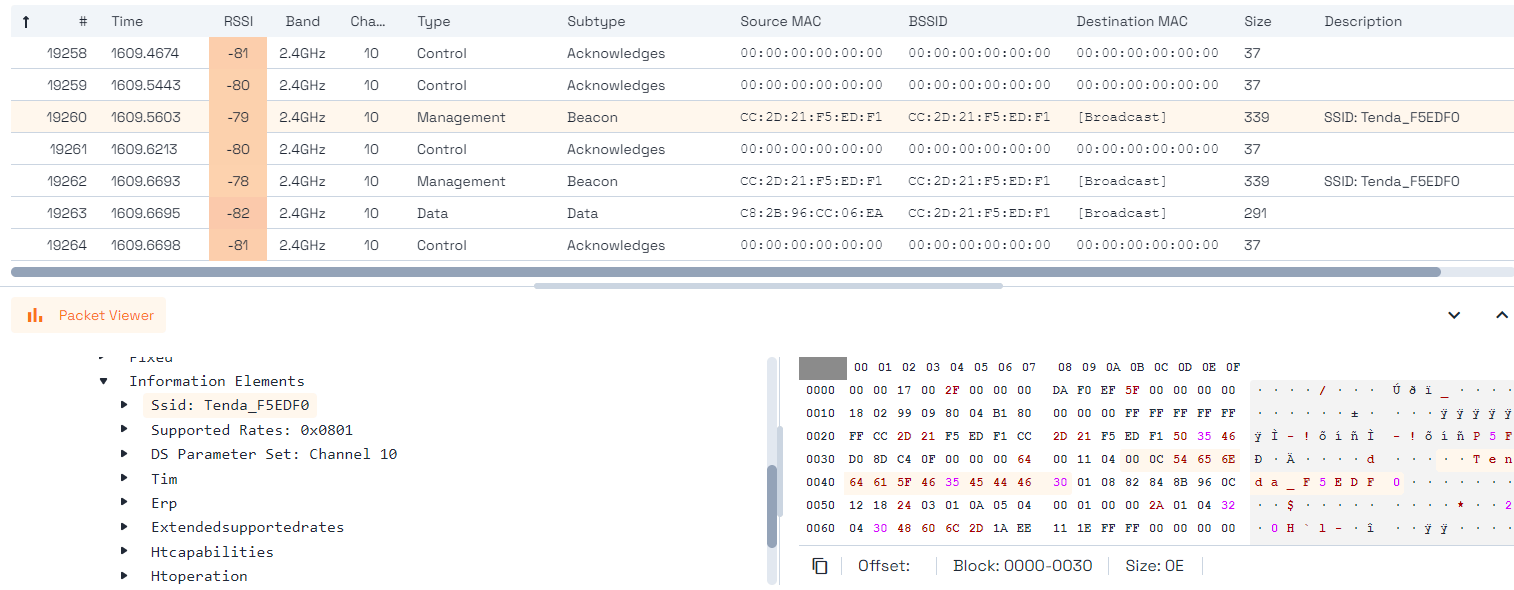
Traffic Viewer (Sniffer): This feature captures and visualizes all Wi-Fi packets being transmitted over the air in real-time. The Traffic Viewer is essential for identifying problems by analyzing specific Wi-Fi packet details. You can navigate through the packet structure, examine values, and view their full contents in hexadecimal mode, crucial for debugging protocol failures or hidden network processes.
-
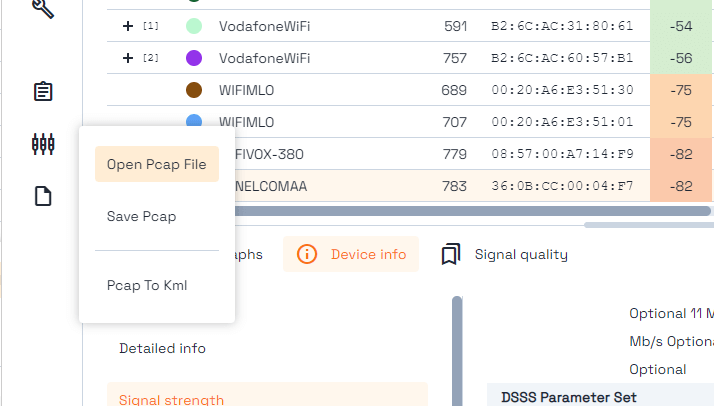
Pcap Export and Compatibility: The industry standard format for saving captured network traffic is pcap. When you stop monitoring, advanced analyzers allow you to save the packets to a pcap file. This universal format ensures compatibility with popular market tools such as Wireshark and aircrack, enabling you to perform deeper, offline analysis using your preferred specialized tools.
3. Geospatial Mapping and Coverage Audits
-
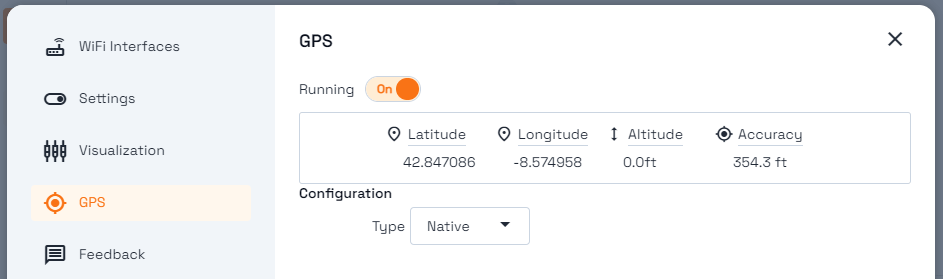
Use GPS for Geolocation: For highly accurate outdoor or large-scale indoor surveys, you can integrate a GPS device (either internal or an external USB/Bluetooth NMEA 0183 device). This functionality automatically tags all Wi-Fi measurements with precise longitude and latitude data, allowing for spatial referencing and accurate representation of coverage later on.
-
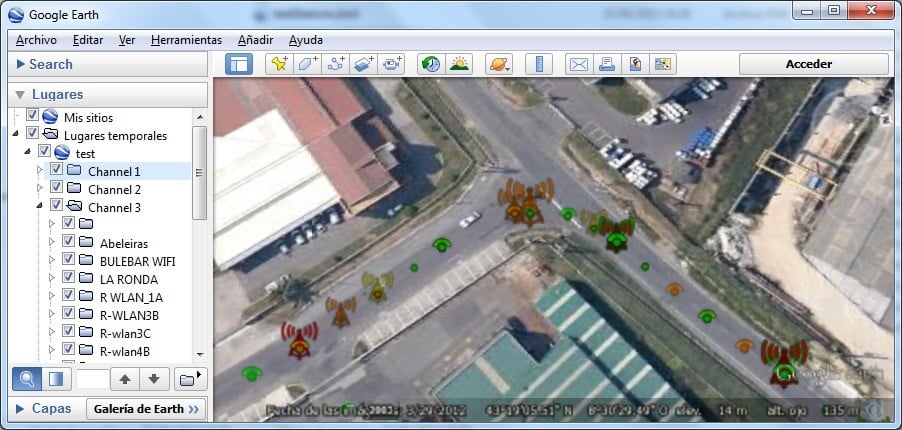
KMZ and KML Map Generation: Leveraging the GPS data captured, you can process the saved .pcap files to generate KMZ and KML map files. This feature allows you to visualize the captured Wi-Fi information, including signal strength and channel usage, directly within Google Earth or Google Maps. This is invaluable for generating professional heatmaps and coverage reports.
4. Performance and Radio Frequency Metrics
-
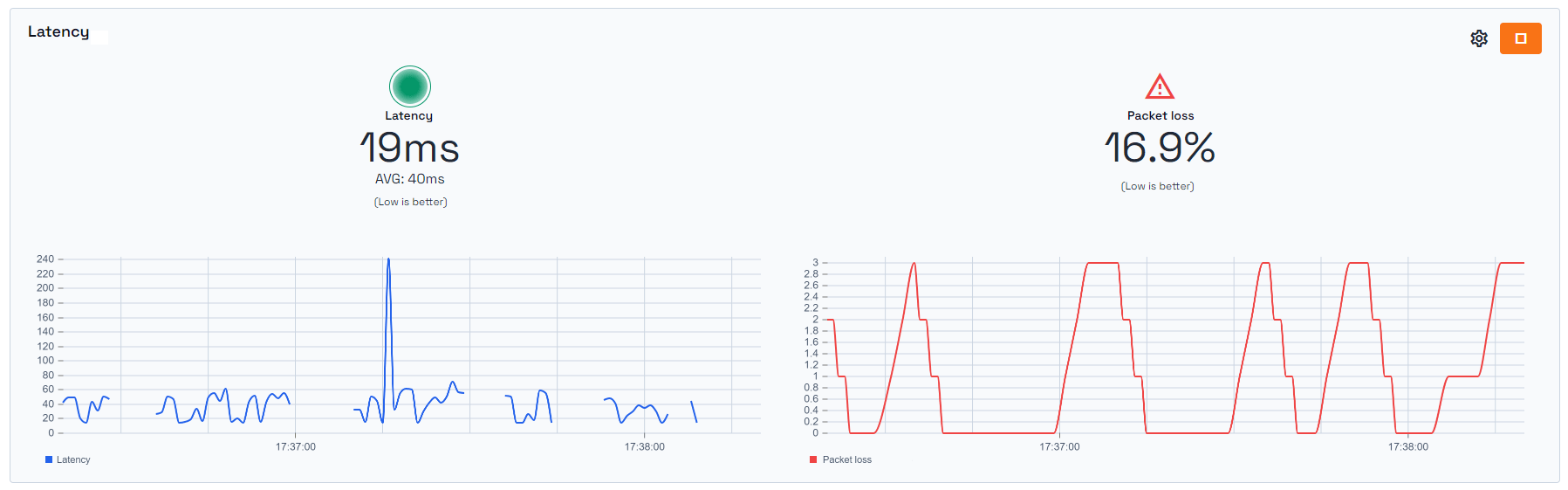
Measuring Latency: Latency is the time it takes for a data packet to travel to a server and return. It is a critical metric, especially for real-time applications like online gaming (gaming) and VoIP. High latency results in noticeable delays, commonly called LAG. By sending a data packet and precisely measuring the round-trip time, you can quantify the performance bottleneck.
-
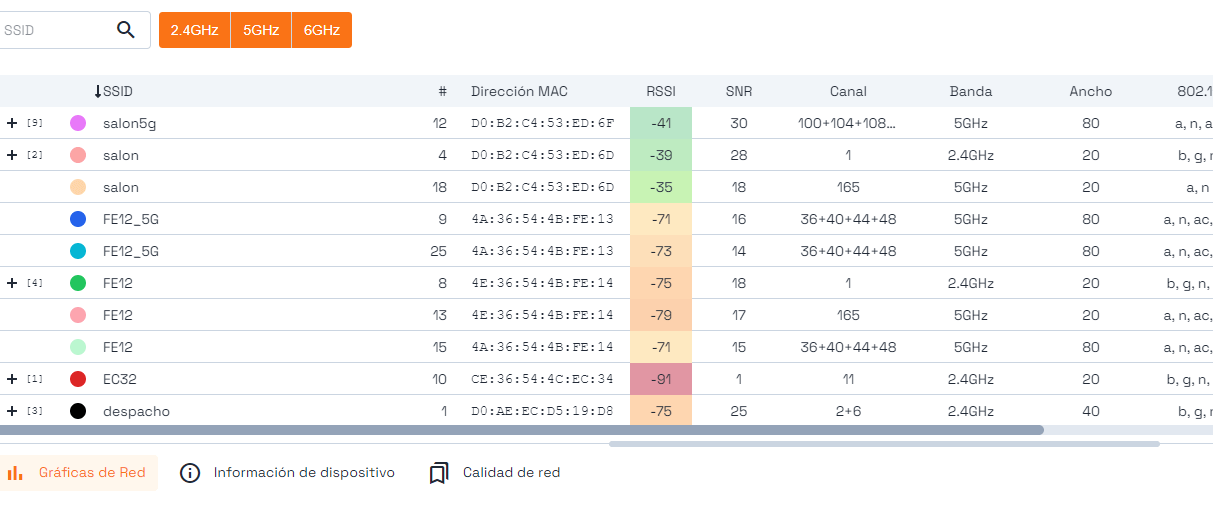
Measure Interference (SNR): The Signal-to-Noise Ratio (SNR) is a crucial value that measures the interference present in the Wi-Fi spectrum relative to the desired Wi-Fi signal strength. SNR values typically range from 0 to 100. The higher the SNR value, the lower the background noise, and therefore, the better the communication quality. Measuring SNR in monitor mode is necessary to generate a Wi-Fi SNR map and identify the optimal coverage areas.
5. Security Audits and Validation
-
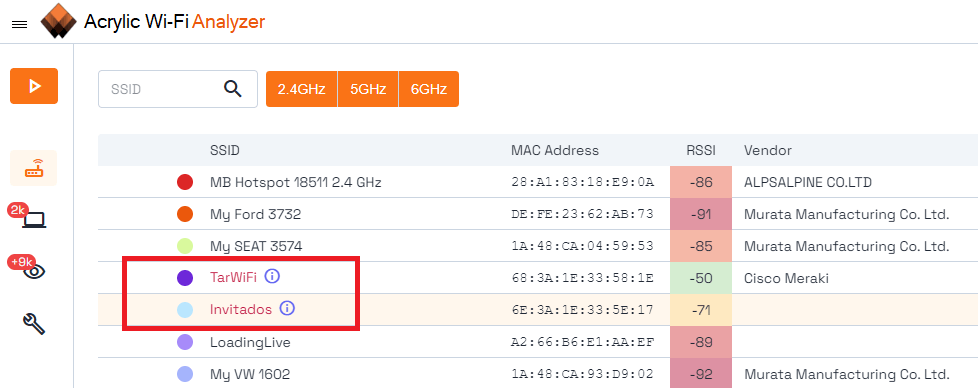
Discovering Hidden SSIDs: When capturing traffic in monitor mode, if the necessary deauthentication or association conditions are met, it is often possible to discover the actual SSID of a hidden network. For this hidden Wi-Fi SSID, the name will appear in the analyzer, clearly marked to indicate that it was a previously concealed network whose name has been identified.
-
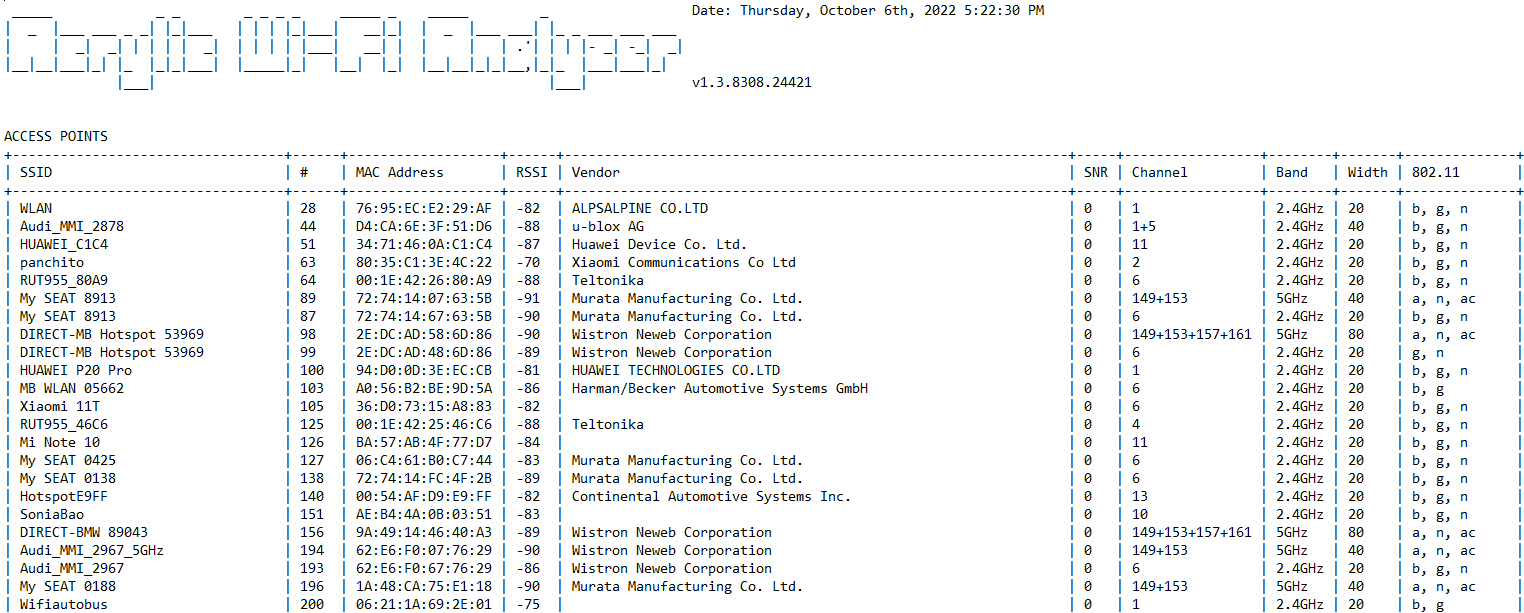
Generate a Comprehensive Report: Generating detailed reports of an advanced Wi-Fi analysis is very useful for tracking the status of access points and devices identified at a specific time. It is possible to export the data to CSV or ASCII, which allows easy integration with third-party network management, monitoring, or documentation tools.
-
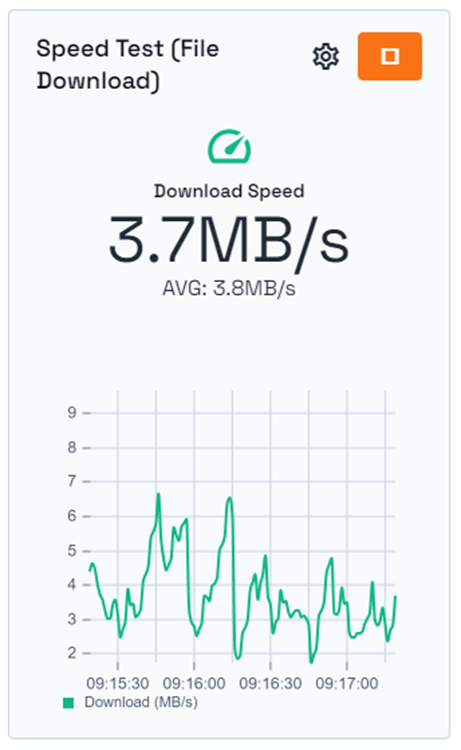
Validate with a Wi-Fi Speed Test: After analyzing, optimizing, and adjusting all the parameters of a wireless connection, the last and most practical step is to verify the improvement. Perform a Wi-Fi speed test to measure the real-time performance values (throughput) of the wireless network. This validates the success of your advanced analysis and optimization efforts.
By mastering these 10 advanced techniques—from selecting the right capture mode and visualizing raw traffic to geo-positioning captures and measuring the true network performance with metrics like SNR and latency—you can move from basic troubleshooting to a full-scale, professional Wi-Fi analysis and optimization strategy. All these advanced tricks and many more can be performed with specialized tools like Acrylic Wi-Fi Analyzer.
Frequently Asked Questions (Interactive FAQ)
In normal mode, your Wi-Fi card only captures data packets specifically addressed to it. In monitor mode (or promiscuous mode), the card captures nearly all packets passing through the air, including traffic between other devices, beacon frames, and unencrypted management frames. This is essential for a complete network audit.
RSSI (Received Signal Strength Indicator) only measures how strong the signal is. SNR measures the difference between the signal strength and the background noise (interference). A high RSSI with low SNR means a strong but noisy signal, leading to poor performance. A high SNR ensures a clear signal and high connection quality.
A Pcap (Packet Capture) file is a data file format used to store network packet data. You need it because it allows you to save the raw network traffic captured in monitor mode for later, in-depth analysis using specialized tools like Wireshark, even when you are offline or away from the network source.
Post a Comment for "10 Advanced Tips for Professional Wi-Fi Network Analysis"