

In the hyperconnected digital world, sharing your WiFi password feels almost as routine as offering a glass of water. Whether you’re visiting a friend, attending a meeting, or sipping coffee at a cafe, asking for the network key is second nature. However, translated to the physical world, sharing your main WiFi password is akin to handing out copies of your house keys. You are granting unsupervised access to your private, local environment, potentially exposing sensitive information, valuable data, and networked devices to risk. This practice introduces significant vulnerability, as every device connected to your network can potentially interact with others—and share malware or ransomware.
The crucial defense against this security risk, for both homes and businesses, is to create a separate guest WiFi network. This dedicated network allows visitors, customers, and temporary users to access the internet while keeping them securely isolated from your critical local devices and private data. Establishing this barrier is one of the simplest yet most effective cybersecurity measures you can take today.
1. The Significant Security Risks of Sharing Your Main WiFi Network
The more devices from outside your immediate control that connect to your primary, private network, the more vulnerable your entire digital ecosystem becomes. This vulnerability is compounded by the fact that you have no control over the security posture, antivirus status, or software integrity of your guests' phones, tablets, or laptops.
1.1 Direct Access to Local Devices and Data
When a guest connects to your main network, their device is placed within the same Local Area Network (LAN) as your personal and work equipment. This means their device can often:
- Discover Networked Devices. They can see and potentially access network-attached storage (NAS) devices, shared printers, smart security cameras, smart TVs, and even work laptops.
- Utilize Network Services. They may gain unauthorized access to internal services, such as a local server, casting services (like Chromecast or AirPlay), or management interfaces for smart home devices.
- Exploit Zero-Day Vulnerabilities. If one of your networked devices has an unpatched vulnerability, a malicious user or a device carrying a virus could exploit this weakness to gain control or steal data.
1.2 Malware and Ransomware Propagation
The most immediate and terrifying threat is the potential for cross-contamination. Imagine a situation in a restaurant that uses a single WiFi network for everything:
- Business Risk Scenario. The free customer WiFi is the same network used to connect the point-of-sale (POS) terminals, back-office computers, and inventory systems. If a customer's phone unknowingly harbors a virus, that malware can replicate and spread to the company's critical POS terminals, potentially leading to a financial data breach or a total system shutdown due to ransomware.
- Home Risk Scenario. If your friend connects their mobile phone—which has a silent virus—to your home network, the malware can quickly spread. It could infect your work laptop, encrypt your shared family photos on your desktop PC, or compromise your network security cameras.
It is non-negotiable: Under no circumstances should a business or homeowner use the same network for both internal, sensitive devices and transient, external visitor devices.
2. The Undeniable Advantages of a Dedicated Guest WiFi Network
A guest WiFi network is a simple, standardized, and highly effective way to create a secure buffer between your private digital world and the public internet access you wish to provide. The benefits extend far beyond basic security.
2.1 Complete Network Isolation and Security
The primary advantage is isolation. Devices connecting to the guest network are placed in their own separate environment, often called a Virtual Local Area Network (VLAN), and they are restricted from accessing your local devices, private data, and internal services. This means:
- No Snooping or Intrusion. Guests cannot "sniff out" network traffic, perform port scans on your private IP addresses, or attempt to communicate with your printers or NAS devices.
- Zero Contamination Risk. Even if a guest device is infected with malware, that infection is confined to the guest network and cannot easily spread to your main network devices.
- Client Isolation Enforcement. Many modern routers also offer Client Isolation on the guest network, which goes a step further by preventing the guests' devices from communicating with each other. This is essential in public settings like cafes or shared office spaces.
2.2 Enhanced Access Control and Password Management
A guest network gives you superior administrative control over who is on your network and for how long:
- Separate, Disposable Password. The guest network has its own password, which you can change frequently without the hassle of reconfiguring every single device on your main network (smart lights, computers, printers, etc.).
- Peace of Mind. You maintain the integrity of your primary, long-term password. You have the peace of mind of knowing that no external device has "sneaked" into your most protected inner network ring.
2.3 Traffic Management and Quality of Service (QoS)
Since the guest network is separate, it allows you to manage internet traffic and prioritize bandwidth usage distinctly from your primary network:
- Bandwidth Limitation. You can apply Quality of Service (QoS) settings to the guest network to limit the connection speed. For example, you can cap the guest speed at 25 Mbps, ensuring that your core work or streaming activities on the main network remain fast and stable, regardless of how many guests are connected.
- Usage Quotas and Filters. You can configure traffic quotas or set up content filters to blacklist certain pages or limit the type of services (e.g., peer-to-peer downloads) that visitors can access.
A guest network allows us to set filters or quotas, giving you granular control over resources and legal liability.
3. Step-by-Step: How to Create a Secure Guest WiFi Network
Creating a guest network is straightforward, as the functionality is built into most modern routers. In general, you can enable and configure it directly from your router’s administrative panel.
3.1 Configuration via Your Router’s Web Interface
To configure a guest WiFi network on your router, follow these standardized steps:
- Access the Router’s IP Address. Open a web browser on a device connected to the router and enter the router’s local IP address. By default, this is commonly 192.168.1.1 or 192.168.0.1.
- Log In to the Administration Panel. Enter your administrator username and password. If you haven’t changed them, these credentials are usually printed on a sticker on the router (often simple combinations like "admin," "root," or "1234"). Crucially, change these default credentials immediately.
- Locate Guest Network Settings. In the configuration menu, search for a section labeled "Guest Network," "Wireless Isolation," or "New SSID."
- Activate and Configure the Network. Activate the new WiFi network for guests. Assign a unique, clear name (SSID), a strong password, and select an authentication method (WPA2 or, ideally, WPA3 should be used). The router will often suggest adding "guest" to the end of your main network name.
- Enable Isolation and Save. Ensure that the setting for Client Isolation or "Allow guests access to local network" is set to OFF (i.e., ensure they are isolated). Save the changes.
Once configured, the guest network generally does not require specific maintenance. However, it is important to perform periodic checks to verify that the isolation is still configured correctly, especially after firmware updates, which can sometimes revert settings.
3.2 Advanced Setup for Corporate Environments
In companies or public venues with a high volume of uncontrolled access, a more robust setup is required to ensure complete security and legal compliance. It is often advisable to create a guest network using a dedicated secondary router or enterprise-grade access points.
- Required VLAN Separation. This setup requires placing the guest SSID on a separate VLAN (Virtual Local Area Network) that is logically isolated from the corporate network, even if they share the same physical cables.
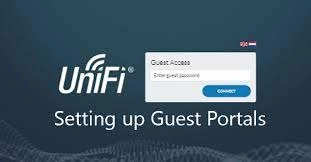
- Captive Portals. Specialized devices allow you to set up captive networks, similar to those used in airports or libraries. This is an open network, but upon connecting, the user is redirected to a registration or login page. They must agree to terms of service and obtain credentials before they can browse.
- Professional Installation. Solutions like pfSense or OPNsense offer much more detailed control, allowing the management of independent VLANs, granular firewall rules, and complex functionality. The installation for these advanced solutions must be carried out by a specialized network engineer or company, as it requires complex deployments and configurations.
If you are a user connecting to one of these public networks, it remains highly advisable to use a Virtual Private Network (VPN) to encrypt your internet traffic from your device, as you cannot trust the security protocols of an open network.
4. Common Mistakes to Avoid and Best Practices
Even though setting up a guest network is simple, avoiding certain common mistakes is critical to ensure it remains both functional and secure for all users.
4.1 Essential Security Measures
- Avoid Weak Passwords or Open Networks. Never leave the guest network open or secured with an easy-to-crack password. The security of this secondary network is nearly as important as the primary one, as a weak password can be exploited to launch attacks or unauthorized usage.
- Choose WPA2/WPA3 Encryption. Older encryption methods, such as WEP and WPA, are easily compromised and do not offer adequate protection today. Always select WPA2 as the minimum standard, or WPA3 if your router and devices support it.
- Update the Key Regularly. If you share your guest network with many users for short periods (like a hotel or cafe), changing the password frequently allows you to better control access and maintain security if the previous key was compromised.
4.2 Managing Performance and Legal Liability
- Limit Bandwidth. Remember that both the main and guest networks utilize the same underlying internet connection pipe. If you do not limit the bandwidth of the secondary network using QoS, saturation from guest streaming can cause slow speeds and intermittence on your critical primary network.
- Filter Traffic and Block Malicious Websites. A single access to a malicious site by one of your guests is enough to download malware. Furthermore, if someone visits illegal websites, remember that it is **your IP address** that will appear in a potential police investigation. Implementing basic web filtering helps mitigate both security and legal risks.
- Monitor Network Usage. The guest WiFi network, though separate, is still part of your ecosystem. Monitoring its use helps verify that it is secure, working properly, not overwhelming your primary network, and that no strange or illegal uses are being made from your IP.
5. How to Monitor and Control Guest WiFi Usage
Various tools can be used to monitor the usage of any WiFi network, including guest networks. The complexity ranges from simple router interfaces to dedicated enterprise software.
- Router Administration Panel. In general, the router’s administration panel allows you to see the list of currently connected devices. More sophisticated routers will provide detailed data on bandwidth consumption per client.
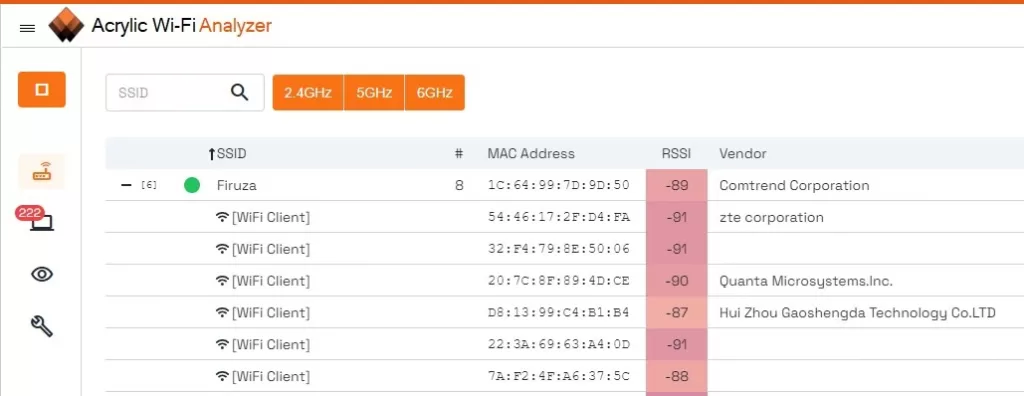
- WiFi Analyzer Software. Software tools are excellent options for individuals and small businesses. With these tools, you can see in real-time the devices connected to your WiFi network and their traffic metrics. They can help you identify devices that should not be connected and act accordingly.
- Enterprise Monitoring Tools. For more ambitious companies, 24/7 monitoring tools allow continuous surveillance of network traffic, viewing connection data, and generating reports. These usually require dedicated server installation and greater knowledge of network management.
Implementing a guest WiFi network is not just about convenience; it is a fundamental cyber hygiene practice that protects your digital assets and maintains performance. It is the easiest way to be a generous host without becoming a network security liability.
Frequently Asked Questions (Interactive FAQ)
Not necessarily, but it is often configured that way. By default, both networks share the same maximum internet speed. However, most experts recommend using Quality of Service (QoS) settings to intentionally limit the guest network's bandwidth. This ensures that guest activity (like streaming) does not significantly slow down your essential work or home activities on the main network.
A Guest Network separates external users from your entire private network (your devices, printers, files). Client Isolation is a security feature that prevents guest devices on the same network from communicating with each other. For maximum security in public or shared spaces, you should enable both features.
You should use the highest encryption standard supported by your router and guest devices. WPA3 is the current, most secure standard and is highly recommended. If you have many older devices that cannot connect to WPA3, use WPA2 (AES) as the minimum acceptable security standard.
Yes. Many high-end or enterprise routers (and dedicated captive portal solutions) allow you to set time limits for guest access, for example, limiting connections to 2 or 4 hours. Standard home routers typically do not offer this feature, but you can achieve similar control by changing the guest network password daily or weekly.
Post a Comment for "The Essential Guide to Guest WiFi Networks: Why You Need One and How to Set It Up Securely"