

The frustration is universal: one moment your internet is running perfectly, and the next, your connection is suddenly slow or completely cut off. Consider Gustavo, a football fanatic who planned to enjoy the Super Bowl in high definition. His night turned into a nightmare not because his favorite team lost, but because continuous interruptions made the game unwatchable. This scenario is incredibly common in the modern era, where the internet is the backbone of our existence. The crucial question is: Why is my connection suddenly so slow or cut off? Understanding the precise reasons, from subtle interference to deep network congestion, is the key to effective troubleshooting.
This comprehensive guide delves into the root causes of sudden connectivity issues, providing advanced diagnostic tools and layered solutions to restore and optimize your network's speed and stability for the long term. We'll explore symptoms, examine technical factors affecting the signal, and detail effective measures from simple reboots to complex configuration adjustments.
1. Recognizing the Symptoms of a Degraded Connection
Before diagnosing the causes, it’s helpful to correctly identify the symptoms that indicate your WiFi connection is not performing as it should. These signs often point directly to the type of underlying problem (latency, bandwidth, or stability):
- Web Pages Load Slowly. Simple websites, which should load instantly, take several seconds to render completely, indicating high latency or insufficient download bandwidth.
- Streaming Interruptions and Buffering. Video services (like Netflix or YouTube) frequently pause to "buffer," suggesting a severe loss of sustained bandwidth necessary for consistent data flow.
- Video Call Disconnections. Calls on platforms like Zoom or Teams suffer from frequent freezes, audio drops, or complete disconnections, signaling high packet loss and poor stability.
- Lag in Online Games. Gameplay experiences severe delay, known as "lag," where your actions take a noticeable amount of time to register. This is a clear indicator of critically high latency (ping).
- Devices Disconnect Spontaneously. Your phone, laptop, or smart device randomly drops the WiFi signal only to reconnect moments later, indicating severe signal instability or interference.
If you frequently encounter these scenarios, your WiFi network is likely underperforming. The next step is to investigate the technical causes that explain why your connection is suddenly slow or cuts out.
2. Four Primary Causes That Cripple WiFi Quality
A wide range of factors can explain incidents of slow speed and instability. The causes can generally be categorized into four primary areas, detailed below:
2.1 Environmental and Physical Interference
WiFi is a radio signal, making it highly susceptible to disruption from various physical and environmental elements:
- Physical Obstacles and Signal Attenuation. Thick walls, concrete, metal objects, mirrors, and large pieces of furniture absorb or reflect the radio waves, severely weakening the signal strength (attenuation). Metal and concrete are particularly problematic, often creating dead zones where the signal is too weak to be stable.
- Electrical Appliances and Non-WiFi Devices. Numerous common household items generate interference, especially within the crowded 2.4 GHz band. These include microwaves, older cordless phones, Bluetooth devices, and even poorly shielded electrical cables or transformers. This interference can corrupt the data packets, leading to errors and repeated transmission requests.
- Co-Channel and Adjacent-Channel Interference. In dense residential areas (apartments), your router must compete with dozens of nearby WiFi networks using the same radio channels. Co-channel interference occurs when multiple networks use the same channel, slowing everyone down. This is the single most common cause of sudden slowdowns in cities.
2.2 Network Congestion and Bandwidth Saturation
The more devices actively connected to your network, the greater the demand for limited bandwidth. This demand can rapidly overwhelm the router and significantly slow down the connection for all users:
- Device Overload. While modern home routers can theoretically handle 20 to 50 connected devices, active performance is severely affected if many of those devices are simultaneously consuming data. The router’s processor can become overloaded managing traffic and device authentication.
- Bandwidth-Intensive Activities. Certain applications monopolize bandwidth, leading to sudden slowdowns: 4K/8K video streaming services, competitive online gaming (due to high throughput demand), cloud backups, and large file downloads (such as Torrent clients). Identifying and limiting these activities during peak hours is critical.
- Peak Hour Congestion (ISP Level). Not all congestion happens inside your home. During the evenings (peak usage hours), the general user network of your Internet Service Provider (ISP) may experience high demand, creating a bottleneck outside your home network which drastically slows down your entire internet service.
2.3 Router and Firmware Issues
The router is the central processing unit of your network. Any problem with this device is guaranteed to affect connection efficiency and speed:
- Temporary Software Hangs. Router operating systems, like any software, can experience temporary memory leaks or configuration glitches after extended operation. A simple restart (power cycle) clears the internal memory and resolves these momentary conflicts.
- Outdated Firmware. Routers require regular firmware updates to maintain optimal function, fix security vulnerabilities, and ensure compatibility with modern internet technologies (like Wi-Fi 6/6E). Outdated firmware often leads to unpredictable slowdowns and instability.
- Hardware Aging and Obsolescence. Older router models may not support modern gigabit internet speeds or current wireless standards (such as Wi-Fi 6 or Wi-Fi 7), creating a performance bottleneck even if you pay for fast service. Furthermore, internal hardware components can simply degrade over time.
2.4 External and Provider Factors
Sometimes, the problem lies entirely outside your home network, resting with the ISP or the connection type itself:
- ISP Technical Faults and Maintenance. Unforeseen technical faults, local hardware failures, or scheduled maintenance on the provider’s network infrastructure (e.g., node failure in the neighborhood) can cause sudden total outages or severe performance degradation.
- Physical Line Damage. The physical connection leading to your home (fiber optic cable, coaxial cable, or copper ADSL wire) can be damaged by construction, weather, or wear, leading to poor signal quality and instability.
- Connection Type Limitations. Not all connection types can deliver consistent speed. ADSL is fundamentally slower and more distance-dependent than Fiber Optic. Ensuring your network needs are appropriately matched to the contracted connection type is crucial.
3. Diagnosis and Tests: Pinpointing the Problem Source
If you suspect a problem, the next essential step is to identify the precise source—is it your router, your device, or your ISP? Here are the most useful tools and techniques for this task:
3.1 Basic Speed and Connection Tests
Tools like Speedtest or Fast.com allow you to measure your connection's current performance metrics. Always compare the results with the guaranteed speed contracted from your ISP.
- Test with an Ethernet Cable. Crucial Step: Plug a computer directly into the router via an Ethernet cable and run a speed test. If the speed is fast on the cable but slow on WiFi, the problem is local to your WiFi signal. If the speed is slow on both the cable and WiFi, the problem lies with your ISP, modem, or router hardware/firmware.
3.2 Interference Analysis and Channel Scanning
Apps designed to analyze wireless networks help home users detect and visualize congested channels and nearby competing networks. This information is key for identifying interference and choosing a less saturated channel.
- WiFi Analyzer Tools. Use a WiFi analyzer to see which channels your neighbors are using. If the 2.4 GHz band is crowded (common), you need to manually change your router's channel setting to 1, 6, or 11, as these are the only non-overlapping channels.
3.3 Command-Line Network Diagnostics
For users with some technical knowledge, command-line tools can provide deep insight into network performance and routing issues:
- Ping (Packet Internet Groper). Tests the latency (response time) between your device and a target (e.g., the router's IP or a website like Google.com). A high ping or packet loss (data packets failing to return) indicates a critical stability problem.
- Tracert (Traceroute). Shows the entire path your data takes to reach a destination and the latency at each hop. This is invaluable for identifying bottlenecks outside your home network (e.g., if a specific node on the ISP's network is the source of the delay).
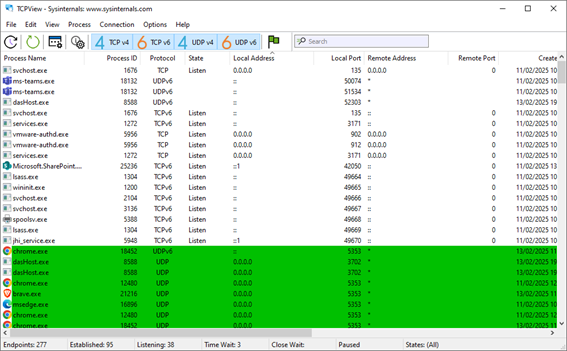
- Netstat. Checks the active network connections on your device, helping identify if a background application (like a cloud sync service or malware) is secretly consuming all your bandwidth.
4. Solutions and Recommendations: Restoring Your Connection Quality
Once you have a clear understanding of why your connection is suddenly slow or cuts out, you can apply targeted solutions, categorized from basic to advanced:
4.1 Essential Basic Actions and Router Placement
These are simple, high-impact fixes that should always be tried first:
- The Power Cycle. Always start by restarting the router: turn it off for a minimum of 30 seconds and turn it back on. This clears its temporary memory and resets the connection with the ISP.
- Optimize Placement. Install the router in a central, elevated location in the house, away from large metal objects, concrete walls, and interfering appliances (microwaves).
- Ease the Load. Temporarily disconnect unused devices (especially smart devices that update automatically) to reduce the demand on your network's processor and bandwidth.
4.2 Advanced Router Configuration
If basic actions fail, you likely need to access your router’s administrative interface (usually via a web browser) to make technical adjustments:
- Change the WiFi Channel. Use a WiFi Analyzer tool to identify the least congested channel (ideally 1, 6, or 11 on the 2.4 GHz band) and manually switch your router to that channel to minimize interference from neighbors.
- Utilize the 5 GHz Band. If your devices support it, utilize the 5 GHz band. It is less prone to interference and offers higher speeds, though you must accept its shorter range. Consider separating the 2.4 GHz and 5 GHz networks with unique names (SSIDs).
- Adjust the Quality of Service (QoS). Configure the router’s QoS settings to prioritize the traffic of important applications (such as VoIP for video calls, or competitive gaming) over lower-priority traffic (like large background downloads).
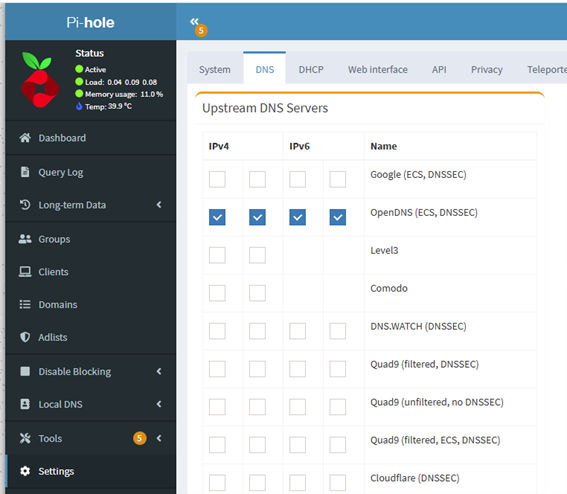
- Change the DNS Servers. If DNS lookups are slow, switch from your ISP's default servers to public, high-speed DNS servers like Google (8.8.8.8) or Cloudflare (1.1.1.1). This can often improve the perceived speed of web browsing.
- Update Firmware. Ensure your router's firmware is the latest version. This is crucial for both stability fixes and security patches.
4.3 Implementing Technological Improvements
If environmental factors (large homes, thick walls) are the root cause, hardware solutions are necessary to fix coverage deficiencies:
- Mesh WiFi Systems. Ideal for large or multi-story homes, mesh systems use multiple nodes that communicate to create a uniform and stable coverage area, eliminating dead zones without sacrificing speed.
- Ethernet Cable Use. For fixed devices (desktop computers, smart TVs, game consoles), a wired Ethernet connection is always the most stable, fastest, and lowest-latency option, freeing up the WiFi bandwidth for mobile devices.
- Router Upgrade. If your router is more than three years old, consider investing in a modern model that supports Wi-Fi 6 (802.11ax) or newer standards. Newer routers handle device load and complex traffic much more efficiently.
- WiFi Repeaters (Use Cautiously). While repeaters extend range, they often do so by halving the speed. Mesh systems or Powerline adapters are generally superior alternatives.
In short, understanding why your connection is suddenly slow or cuts out can be a very simple process of checking for interference, or one of much greater technical complexity involving configuration and hardware changes. Whatever your situation, the problem has a solution through systematic diagnosis and targeted action.
Post a Comment for "Sudden WiFi Failure: Why is My Internet Connection Abnormally Slow or Constantly Cutting Off?"